WordPress Security for Small Business Websites: A Complete Guide (2026)
WordPress security for small business websites explained without jargon. The exact layers, tools, and setup that keep real client sites protected.
A guide to securing a small business WordPress site without overcomplicating it. Seven layers. One clear setup. No security jargon.
By Sheikh Hassaan — Website developer for service businesses
Quick Answer
WordPress security for small business websites requires seven layers: SSL certificate active, quality hosting with a server-level firewall, a configured security plugin, hardened login page with 2FA, all plugins and core updated regularly, daily off-site backups, and uptime monitoring. None of these require technical expertise to set up. Together they protect against the attacks that compromise the overwhelming majority of small business WordPress sites.
Why Small Business WordPress Sites Get Targeted
Automated bots targeting all WordPress websites equally
Small business owners often assume their site is too small to be worth attacking. That assumption is wrong, and it is the assumption that gets sites compromised.
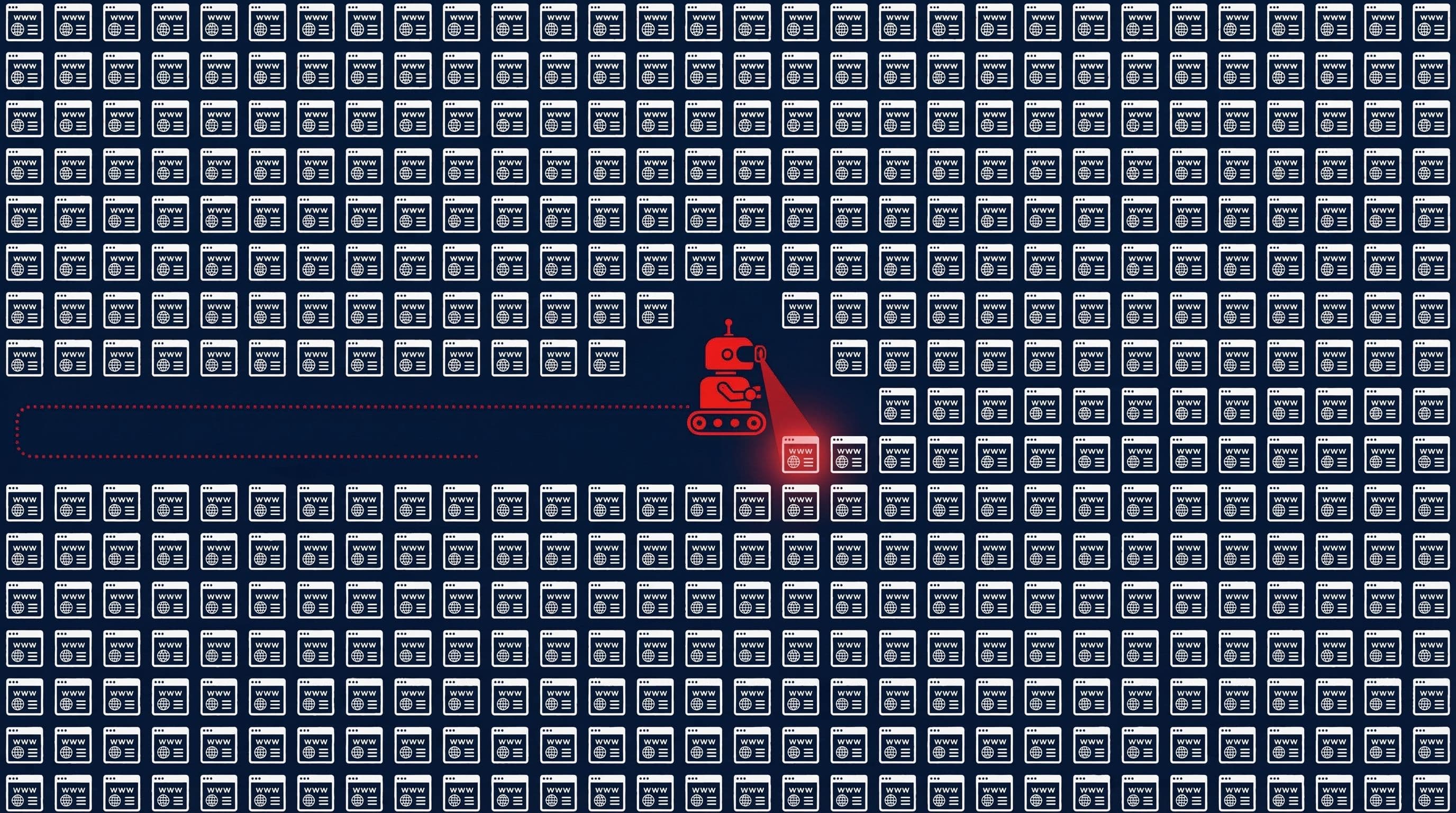
Attacks on WordPress sites are almost never manual and targeted. They are automated. Bots scan millions of WordPress installations continuously, testing for the same predictable vulnerabilities across every site they find. A local plumber's website and a national retailer's website receive identical attack traffic. The difference is that the retailer has a security team and the plumber does not.
WordPress powers over 40 percent of all websites. That market share makes it the single most studied platform for vulnerabilities. Security researchers and attackers both read the same vulnerability databases. When a flaw is found in a popular plugin, it is disclosed publicly and bots begin exploiting unpatched sites within 24 to 48 hours. A small business site running an outdated plugin is a target whether the owner knows it or not.
The consequences of a compromise for a small business are disproportionate. A hacked site loses search rankings, triggers Google warnings that drive visitors away, and damages the trust of clients who see it. Recovery costs money and time the business owner does not have. The goal of this guide is to make sure none of that happens.
The Seven Security Layers Every Small Business Site Needs
WordPress security layers
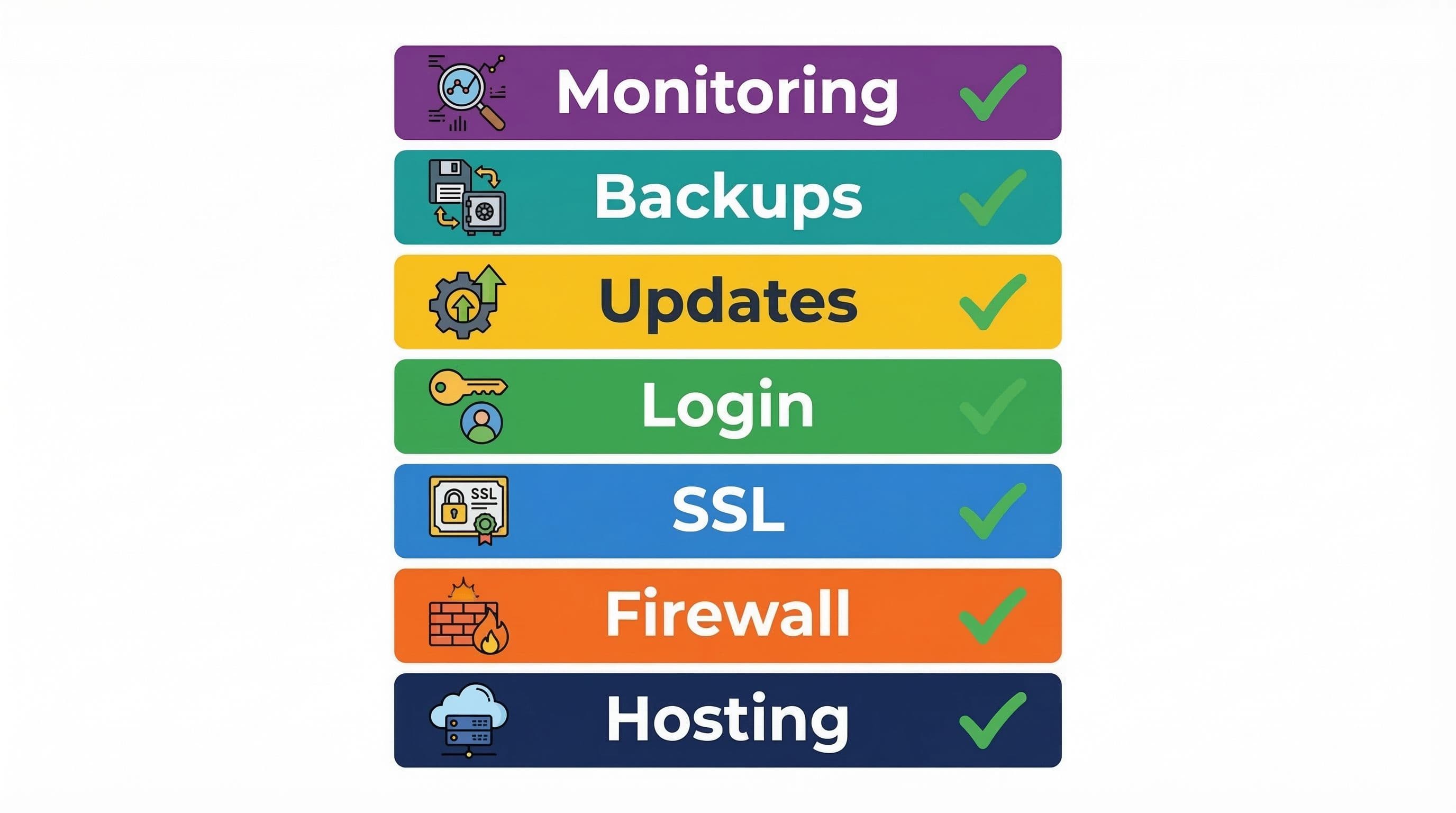
WordPress security is not a single product or plugin. It is a set of independent layers that each address a different attack vector. A site with five layers in place but two missing is not 75 percent secure. It has two open vulnerabilities regardless of what else is configured.
The seven layers are: SSL, hosting quality, security plugin, login hardening, updates, backups, and uptime monitoring. Each is explained in the implementation section below. The table that follows maps each layer to what it protects against and the tool or method used.
Most business owners I work with want a site that is genuinely protected from day one, not something that needs patching and fixing six months after launch.
The Security Stack Reference Table
Use this as a reference checklist for your site. Every item in this table should be in place before a WordPress site goes live.
| Security Layer | What It Protects Against | Tool or Method |
|---|---|---|
| SSL certificate | Data interception in transit | Free via Let's Encrypt or host |
| Web Application Firewall | Malicious request patterns | Wordfence, Solid Security, or host WAF |
| Login hardening | Brute force and credential attacks | 2FA, custom login URL, attempt limits |
| Plugin and core updates | Known vulnerability exploits | Weekly updates, auto-patch for security |
| Backups | Data loss from any cause | UpdraftPlus to Google Drive, daily |
| Uptime monitoring | Downtime and redirect hacks | UptimeRobot free tier |
| Malware scanning | File-level infections | Wordfence scanner, weekly schedule |
How to Implement WordPress Security for a Small Business Site
WordPress login hardening for small business sites
The following steps cover the complete security implementation in order of priority. Each step builds on the previous one. Start at the top and work down.
Step 1: Start With the Right Hosting
What to do: Choose a hosting provider that includes server-level security as part of the plan. Managed WordPress hosts including WP Engine, Kinsta, SiteGround Business, and Cloudways include server-level firewalls, isolated hosting environments, and malware scanning at the infrastructure level. Budget shared hosting provides none of these. The hosting environment is the foundation that all other security layers build on.
Why it matters: A well-configured WordPress security plugin on a shared hosting account without server-level protection provides meaningfully less protection than the same plugin on managed infrastructure. The host's firewall catches threats at the network level before they ever reach WordPress. Without it, every attack reaches the application directly.
Step 2: Activate and Configure SSL
What to do: Activate the free SSL certificate through your hosting control panel. Every reputable host provides this via Let's Encrypt at no cost. After activating it, install Really Simple SSL or confirm your WordPress address settings use https in Settings, then General. Check for mixed content warnings using a browser developer tool or a free checker like whynopadlock.com.
Why it matters: SSL encrypts data between the visitor's browser and your server. Without it, any information entered on your site, including contact form details and login credentials, travels unencrypted. Google Chrome marks non-HTTPS sites as Not Secure in the address bar, which actively reduces trust and conversions regardless of whether any data is actually intercepted.
Pro Insight:
Mixed content warnings occur when a site has SSL active but still loads some resources over HTTP. A site with a broken padlock icon looks almost as untrustworthy as a site with no SSL. Use a mixed content checker before launching and after any major plugin or theme update that might add new resources.
Step 3: Install and Configure a Security Plugin
What to do: Install either Wordfence Security or Solid Security. Both have free tiers that cover the core functions needed for a small business site. After installation, complete the setup wizard and then make one critical configuration change: switch the firewall from Basic Protection to Extended Protection mode. This setting makes the firewall activate before WordPress loads, catching attacks at an earlier point in the request cycle.
Why it matters: A security plugin installed on default settings is not fully protecting the site. The Extended Protection firewall mode is the configuration step most owners skip because it requires one extra step in the setup process. It is also the most impactful single configuration change available. Schedule weekly malware scans from the plugin dashboard and set email alerts to high severity only to avoid alert fatigue.
Pro Insight:
On shared hosting, use Solid Security rather than Wordfence. Wordfence's Live Traffic logging feature consumes significant server resources on shared plans. Solid Security provides equivalent protection with a lighter resource footprint. On managed hosting with dedicated resources, either plugin works well.
Step 4: Harden the Login Page
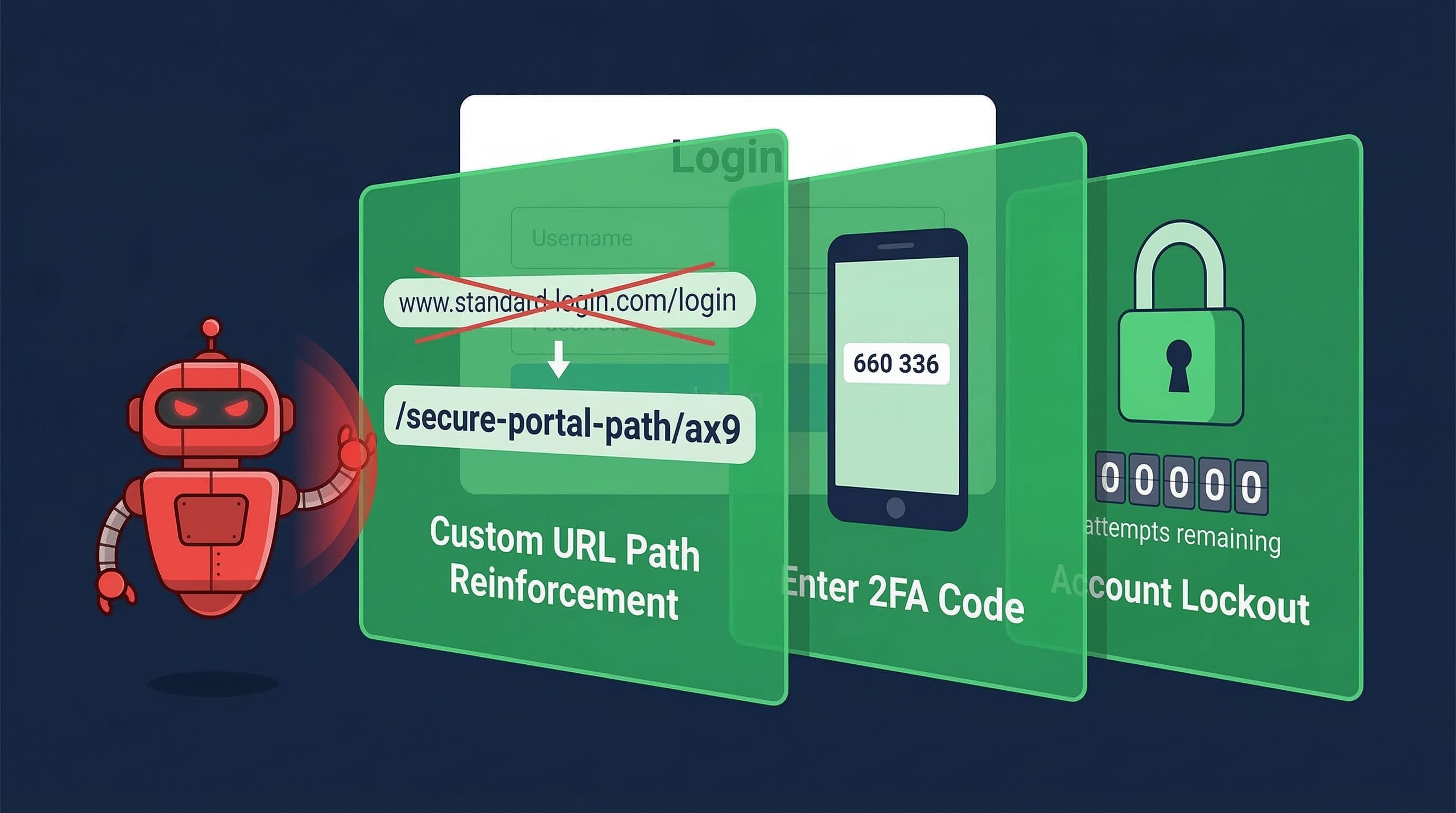
What to do: Four changes harden the WordPress login page against the attacks it faces daily. First, change the admin username from admin to something unique. Second, set a strong password of 20 or more characters using a password manager. Third, enable two-factor authentication on all admin accounts using the 2FA feature built into Wordfence or Solid Security. Fourth, change the login URL from the default /wp-admin to a custom path using the security plugin's settings.
Why it matters: The WordPress login page is the most attacked surface on any WordPress site. Every automated attack starts by attempting to reach /wp-admin and test credentials. Changing the URL removes the site from the majority of automated scans. A unique username and strong password make credential guessing impractical. Two-factor authentication means a compromised password alone is not sufficient for access.
Pro Insight:
Also disable XML-RPC unless the site uses the WordPress mobile app or Jetpack. XML-RPC provides a secondary authentication endpoint that bypasses login attempt limits. Both Wordfence and Solid Security include a one-click option to disable it from the dashboard.
Step 5: Keep Everything Updated
What to do: Enable automatic updates for WordPress core minor versions and security-flagged plugin patches. For major version updates to core, plugins, and themes, apply them manually within one week of release after reviewing the changelog. Delete unused plugins and themes entirely rather than deactivating them. A deactivated plugin's files remain on the server and can still be exploited.
Why it matters: Over 60 percent of WordPress compromises happen through outdated plugins. Known vulnerabilities in popular plugins are published publicly and exploited within hours of disclosure. Auto-updates for security patches close that window automatically. Staying current on all updates is the single highest-impact ongoing security practice available.
Pro Insight:
The WPScan vulnerability database is publicly searchable. Attackers use it to identify plugins with disclosed vulnerabilities and scan for sites running the vulnerable version. If a plugin you use appears in that database with a critical severity rating, treating the update as urgent, regardless of your normal update schedule, is the correct response.
Step 6: Set Up Daily Automated Backups
What to do: Install UpdraftPlus free and configure it to run daily backups with storage to Google Drive. Set retention to 30 days. After the first backup completes, download the backup files and test a restoration to a staging environment or subdomain to confirm the backup is complete and the restoration process works. Repeat this test once every few months.
Why it matters: Backups do not prevent attacks. They determine the recovery cost when something goes wrong. A current backup makes any site problem recoverable in 15 to 30 minutes. Without a backup, the same problem requires rebuilding the site from scratch or paying for professional reconstruction. The backup is not a security measure. It is the safety net that makes all other security measures low-stakes to test and correct.
Pro Insight:
Store backups off-site, not just on the server. If the server is compromised or the hosting account is suspended, server-stored backups become inaccessible at exactly the moment they are needed. Google Drive is free, reliable, and completely independent of the hosting environment.
Step 7: Enable Uptime Monitoring
What to do: Create a free account at UptimeRobot. Add the site's URL as a new monitor set to check every five minutes. Configure SMS and email alerts to your phone number and email address. The setup takes ten minutes and runs indefinitely without further attention.
Why it matters: A site that goes down outside business hours may stay down for hours before the owner notices. Uptime monitoring catches the outage within five minutes and alerts you immediately. It also catches redirect hacks where malware sends new visitors to spam sites while the homepage appears normal to a logged-in admin. Detecting these infections within minutes rather than days significantly reduces the damage to search rankings and client trust.
Pro Insight:
Set the UptimeRobot alert to go to both email and SMS. Email alone is easy to miss outside working hours. An SMS alert at 2am is annoying but significantly better than discovering at 9am that the site has been down since midnight.
Common Security Mistakes Small Business Owners Make
Installing a Security Plugin Without Configuring It
Installing Wordfence and leaving it on default settings is the most common security mistake on WordPress sites. The plugin is installed, the dashboard shows it as active, and the owner assumes the site is protected. Default settings skip Extended Protection firewall mode, do not schedule malware scans, and generate so many email alerts that most owners stop reading them within two weeks. Installation without configuration is not security.
Using Budget Shared Hosting for a Business-Critical Site
Budget shared hosting accounts are oversold, under-resourced, and lack the server-level security infrastructure that managed hosting provides. A small business site on budget hosting is more vulnerable to compromise, slower under normal traffic, and harder to recover quickly when something goes wrong. The cost difference between budget shared hosting and a quality managed plan is often $10 to $15 per month. That difference in hosting quality has a disproportionate impact on site security and performance.
Treating Deactivated Plugins as Safe
Deactivating a plugin stops it from running but leaves its files on the server. Those files contain the same code and the same vulnerabilities as an active plugin. Bots scan for vulnerable plugin files regardless of activation status. The correct action for any plugin not actively in use is deletion, not deactivation.
No Backup or an Untested Backup
A site with no backup is one incident away from losing everything. A site with a backup that has never been tested is almost as vulnerable: the backup exists but its integrity is unverified. Backup failures are often silent. A misconfigured storage connection, a file size limit, or a permissions error can cause backups to fail without any visible notification. Test the restoration process before it is needed.
The Exact Security Setup Used on Client Sites
This is the standard security stack applied to every service business WordPress site:
- Hosting: SiteGround Business or equivalent managed plan with server-level WAF included
- SSL: Let's Encrypt via hosting panel, forced HTTPS via Really Simple SSL
- Security plugin: Solid Security (shared hosting) or Wordfence (managed hosting), firewall on Extended Protection, weekly scans scheduled, high-severity alerts only
- Login hardening: unique admin username, 20-character password via password manager, 2FA enabled on all admin accounts, login URL changed to custom path, XML-RPC disabled
- Updates: auto-update active for core minor versions and security-flagged plugins, weekly manual check for major versions
- Backups: UpdraftPlus free, daily backup to Google Drive, 30-day retention, restoration tested on setup
- Uptime monitoring: UptimeRobot free, 5-minute check interval, SMS and email alerts
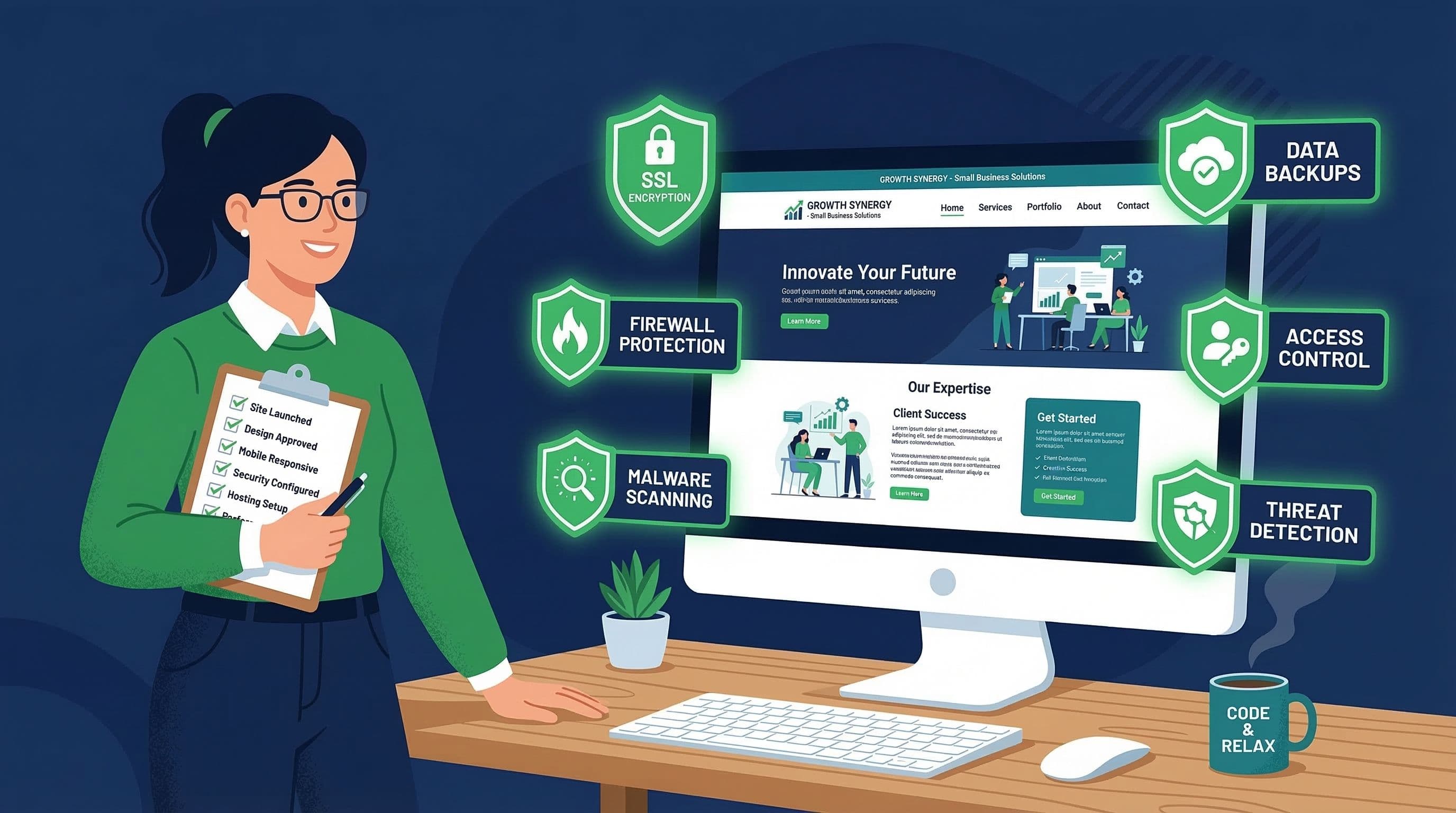
This stack takes approximately 90 minutes to configure correctly on a new site. Every item on this list is either free or included in a quality hosting plan. The investment is time and attention to detail, not budget.
Don't Have Time to Deal With This?
This guide covers everything needed to secure a small business WordPress site. The tools are free. The steps are clear. What it requires is time and the confidence to work through each configuration correctly.
The $449 WordPress Website Package is for business owners who want this handled properly from day one. Every security layer in this guide is configured before the site goes live. SSL active. Security plugin on Extended Protection. Login hardened. Backups running. Uptime monitoring active.
You receive a site that is built to stay secure, not one that needs a security audit six months after launch.
One fixed price. No agency overhead. No retainer required.
View the $449 WordPress Website Package
About the Author
Sheikh Hassaan — Website Developer for Small Businesses
I help service businesses launch fast, secure, conversion-focused WordPress websites without the agency price tag. I've built sites for coaches, consultants, local service providers, and founders who need something professional that actually works, not a DIY project that becomes a second job.
Related Articles
- The WordPress Security Checklist Every Small Business Owner Should Print Out
- The Best WordPress Security Plugin for Small Business Websites (2026 Honest Comparison)
- Is a WordPress Maintenance Service Worth It for a Small Business?
Frequently Asked Questions
How do I secure my WordPress website for my small business?
Start with quality managed hosting that includes a server-level firewall, then activate SSL, install and configure a security plugin with Extended Protection firewall mode, harden the login page with 2FA and a custom login URL, keep all plugins updated, and run daily automated backups. All seven steps together take about 90 minutes on a new site.
Is WordPress secure enough for a small business website?
Yes, when configured correctly. WordPress itself is regularly updated and patched. The security risk comes from outdated plugins, weak login credentials, and missing configuration rather than WordPress core. A properly secured WordPress site is a reliable platform for any service business.
Do I need a security plugin for my WordPress business site?
Yes, for most small business sites. A security plugin provides firewall protection, malware scanning, login hardening, and real-time alerts that are not available through WordPress alone. On managed hosting with a server-level WAF, a lightweight security plugin covering login protection and 2FA is the minimum required.
How much does WordPress security cost for a small business?
The core security tools are free. Wordfence free, Solid Security free, UpdraftPlus free, and UptimeRobot free cover the full security stack. The only cost is quality hosting, which runs $15 to $30 per month on a managed plan. Professional security setup as part of a site build is typically included in the build cost.
What is the biggest security risk for small business WordPress sites?
Outdated plugins are the leading cause of WordPress compromises, accounting for over 60 percent of incidents. The second biggest risk is weak or reused login credentials with no two-factor authentication. Both are straightforward to address with consistent updates and proper login hardening.