Best WordPress Security Plugin for Small Business Websites (2026 Guide)
Confused about which WordPress security plugin actually protects your business website? This guide breaks down everything in detail.
Short Answer: What's the Best WordPress Security Plugin?
For most small business websites, Wordfence (free) or Solid Security (formerly iThemes) covers the essentials: firewall, login protection, and malware scanning. If you are on a managed host like WP Engine or Kinsta, your host handles the heavy lifting — you need a lighter plugin focused on hardening and monitoring, not a full security suite.
Why Most Business Owners Get This Wrong
Here's what typically happens: you build or buy a WordPress site, install a popular security plugin because someone recommended it, leave it on default settings, and assume you're covered. You're not.
WordPress powers over 40% of all websites on the internet, which makes it the single biggest target for automated attacks. Bots aren't selectively targeting your site because they know who you are — they're scanning every WordPress installation they can find, looking for open doors.
For a service business, a hacked website doesn't just mean a technical headache. It means:
- Visitors landing on a phishing page instead of your services page
- Google flagging your site as dangerous — which affects your search visibility overnight
- Leads going cold while you wait days for a developer to clean things up
- Hosting account suspended until the issue is resolved
None of this is dramatic. It happens to real businesses every week. And in most cases, it was preventable with a ten-minute setup.
How to Choose and Set Up the Right WordPress Security Plugin
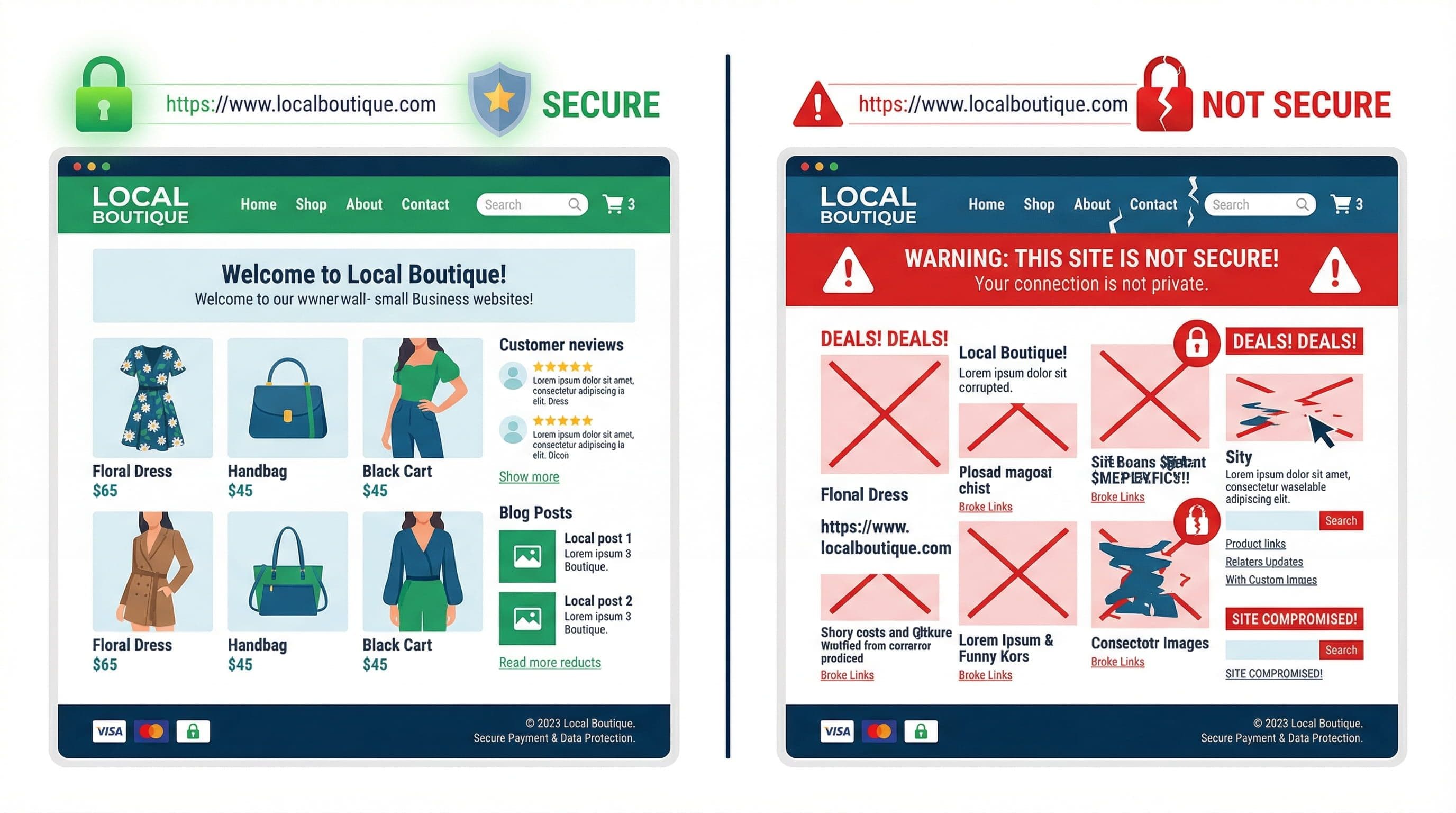
Website with weak security
There's no single "best" plugin that works for every situation. The right choice depends on your hosting environment, your technical comfort level, and whether you're starting fresh or hardening an existing site.
Step 1 — Understand What Your Host Already Covers
What to do: Before installing anything, check what your hosting provider includes. Managed WordPress hosts like WP Engine, Flywheel, Kinsta, and SiteGround Premium handle server-level firewalls, malware scanning, and DDoS protection on their end.
Why it matters: Installing a heavy security plugin on a managed host can slow down your site and create conflicts with server-side tools. You'd be doubling up on protection in ways that hurt performance without adding real value.
Step 2 — Pick the Right Plugin for Your Setup
What to do: Match the plugin to your hosting environment and risk profile.
For shared or budget hosting (Bluehost, Hostinger, SiteGround basic): Wordfence Free is the most complete all-in-one option. It includes a web application firewall, login protection, malware scanner, and real-time threat intelligence.
For managed hosting: Solid Security (iThemes Security rebranded) or WP Cerber. Both are lighter, focused on hardening and brute force protection rather than full firewall suites.
For WooCommerce or high-value sites: Consider Wordfence Premium or Sucuri. The paid tiers add real-time firewall rule updates instead of the 30-day delay on the free version.
Why it matters: The wrong plugin in the wrong environment creates performance drag, dashboard noise, and a false sense of security. Choosing based on your actual setup is the difference between a site that feels sluggish and one that runs clean.
Step 3 — Configure It Properly (Default Settings Aren't Enough)
What to do: After installing, spend 15 minutes going through the settings. Don't just activate and forget.
For Wordfence specifically:
- Enable the firewall and run the setup wizard — it places the firewall in "learning mode" for a week before locking down
- Set login attempt limits (3 failed attempts before lockout is the standard)
- Enable two-factor authentication for all admin accounts
- Disable XML-RPC if you're not using the WordPress mobile app or Jetpack
- Schedule weekly malware scans — the free version scans against known malware signatures
For Solid Security:
- Run the site scan and enable the Security Check Pro recommendations
- Enable brute force protection and local brute force protection
- Change the default login URL (reduces automated bot targeting)
- Disable the WordPress REST API for unauthenticated users if you don't need it
Why it matters: A plugin installed with default settings catches maybe 60% of common threats. A properly configured plugin running on good hosting catches the other 40% that automated bots rely on.
Step 4 — Set Up Activity Logging and Alerts
What to do: Enable email notifications for failed login attempts, plugin changes, and admin user actions. In Wordfence, this is under Email Alert Preferences. In Solid Security, it's under Notifications.
Why it matters: You want to know within minutes if someone is trying to brute-force your login — not two weeks later when a client calls to say your website looks strange.
Set the alert threshold high enough to avoid inbox spam. Three failed logins or one blocked IP per alert is a reasonable starting point for a low-traffic business site.
Step 5 — Don't Skip Backups
What to do: Security plugins protect you from attacks, but backups protect you from mistakes, failed updates, and worst-case breaches. Use UpdraftPlus (free) or your host's backup system and schedule daily backups stored off-site — not just on your server.
Why it matters: If something goes wrong and your host can only restore from a week-old backup, you've lost a week of form submissions, content updates, and customer data. A daily backup stored in Google Drive or Dropbox costs nothing and saves everything.
Common Mistakes That Cost Businesses Money

Website security issues
Installing Multiple Security Plugins
Running Wordfence and Solid Security simultaneously is one of the most common mistakes I see on sites people bring to me for cleanup. They conflict at the firewall level, slow down the site, and generate contradictory alerts. Pick one and configure it well.
Using Weak Admin Credentials
"admin" is still the most common WordPress username in the world. Using it with a simple password is the single fastest way to get your site compromised. Rename the admin account, use a strong password manager-generated password, and enable 2FA. This takes five minutes and eliminates a massive attack vector.
Ignoring Plugin and Theme Updates
Security plugins can't protect you from a vulnerability in an outdated plugin you forgot about. Over 60% of WordPress breaches happen through outdated plugins and themes, not the WordPress core itself. Auto-updates for minor versions and a weekly habit of checking for major updates is non-negotiable.
Not Testing the Contact Form After Security Changes
A misconfigured firewall can block legitimate form submissions — meaning leads coming through your contact form never reach your inbox. After any security configuration change, test your own form. Costs five seconds, prevents losing real inquiries.
Assuming Cheap Hosting Is Fine
Budget shared hosting typically lacks server-level firewalls, puts your site on crowded servers, and offers minimal isolation between accounts. One compromised account on a shared server can affect neighboring accounts. Security plugins help, but they can't fully compensate for a weak hosting environment.
The Exact Security Setup I Use on Client Websites

Website Access to client
For context: I build WordPress websites for service businesses — coaches, consultants, agencies, local service providers. The sites need to be fast, clean, and require minimal maintenance from the client.
Here's what I deploy on every site:
Hosting
Managed WordPress hosting — typically WP Engine or SiteGround Business/Cloud for client sites. Server-level caching, firewalls, and daily backups are included. This is the foundation that makes the rest possible.
Security Plugin
Solid Security (free) for most sites on managed hosting. Wordfence Free for sites on shared or budget hosting. Configuration takes about 20 minutes and follows the steps outlined above. No premium plugins are necessary for the majority of service business sites.
Login Protection
Two-factor authentication enabled via Solid Security or a standalone plugin like WP 2FA. Admin username changed from "admin" to something unique. Login URL changed from /wp-admin to a custom path. This alone stops the majority of automated attacks.
Backups
UpdraftPlus configured to run daily backups with remote storage to Google Drive or Dropbox. Retention set to 30 days. This covers both security incidents and accidental content loss from update failures.
Performance and SSL
SSL certificate is mandatory — not just for security but because Google flags non-HTTPS sites as insecure and Chrome shows warnings to visitors. Every modern host includes SSL for free via Let's Encrypt. There's no excuse for running without it.
Monitoring
Uptime monitoring via a free tool like UptimeRobot — I receive a text within two minutes if a client site goes down. Combined with Wordfence or Solid Security alerts for login failures, this means issues are caught fast, not discovered by the client.
Don't Have Time to Deal With This?
This is a lot to manage when you're already running a business.
The $449 WordPress Website Package is built for service business owners who need a professional, fast, and secure website without spending weeks learning WordPress or paying agency prices.
What you get:
A fully built WordPress website on quality managed hosting, with security properly configured from day one — firewall, login protection, backups, SSL, and uptime monitoring all set up and tested before your site goes live.
You don't get handed a login and a checklist. You get a site that's ready to bring in clients from day one, without you having to become a WordPress expert to keep it safe.
There's no ongoing retainer required, no agency overhead, and no surprises. One fixed price. A complete, working website.
[ View the $449 WordPress Website Package ]
Related Article
Why Good Web Design Matters More Than Ever
Frequently Asked Questions
Is the free version of Wordfence enough for a small business?
Yes, for most service business websites it is. The free version includes the web application firewall, login protection, and malware scanning. The main limitation is that firewall rules are delayed by 30 days compared to the premium version. For a site that isn't processing transactions or storing sensitive customer data, the free tier is entirely sufficient when properly configured.
Do I need a security plugin if I'm on managed WordPress hosting?
You still benefit from one, but you need less. Managed hosts like WP Engine and Kinsta handle server-level security, so a full security suite like Wordfence may be overkill. A lighter hardening plugin like Solid Security to manage login protection, 2FA, and file permissions is the right call on managed infrastructure.
How do I know if my WordPress site has already been hacked?
Signs include: unexpected admin users in your dashboard, pages redirecting to unknown sites, Google Search Console flagging malware warnings, hosting provider suspending your account, or a sudden drop in organic traffic. Run a malware scan with Wordfence or Sucuri's free online scanner if you're suspicious.
Can a security plugin slow down my website?
Yes, poorly chosen or misconfigured plugins can. Wordfence in particular can add server load on shared hosting. This is one reason plugin selection should match your hosting environment. On managed hosting, a lightweight option almost always performs better than a full security suite.
How much does proper WordPress security cost?
For most service business sites, proper security costs nothing extra beyond good hosting. The free tiers of Wordfence, Solid Security, and UpdraftPlus cover everything you need. Quality managed hosting typically runs $25–50 per month and includes server-level security that reduces reliance on plugins entirely. If you're paying $3/month for hosting and wondering why your site keeps getting hacked, the hosting is the problem.
What's the most important WordPress security step for a non-technical owner?
Two-factor authentication on the admin account. It's the single highest-impact action that requires no technical knowledge to set up and immediately blocks the most common attack method: credential stuffing and brute force login attempts. Do that first before anything else.