The WordPress Security Checklist Every Small Business Owner Should Print Out (2026)
A 20-point WordPress security checklist for small business owners. Print it, work through it once, and stop thinking about it.
20 items. Do them once, correctly. Then stop thinking about your site's security and get back to running your business.
By Sheikh Hassaan — Web developer for service businesses
Quick Answer
A complete WordPress security checklist for small business websites covers: SSL certificate active, WordPress core and all plugins updated, unused plugins deleted, admin username changed, strong password and 2FA on admin accounts, login URL changed, login attempts limited, XML-RPC disabled, security plugin configured with Extended Protection firewall, weekly scans scheduled, daily off-site backups running, and uptime monitoring active. Twenty items total. One-time setup, minimal ongoing maintenance.
Why Most Business Websites Are Sitting Ducks
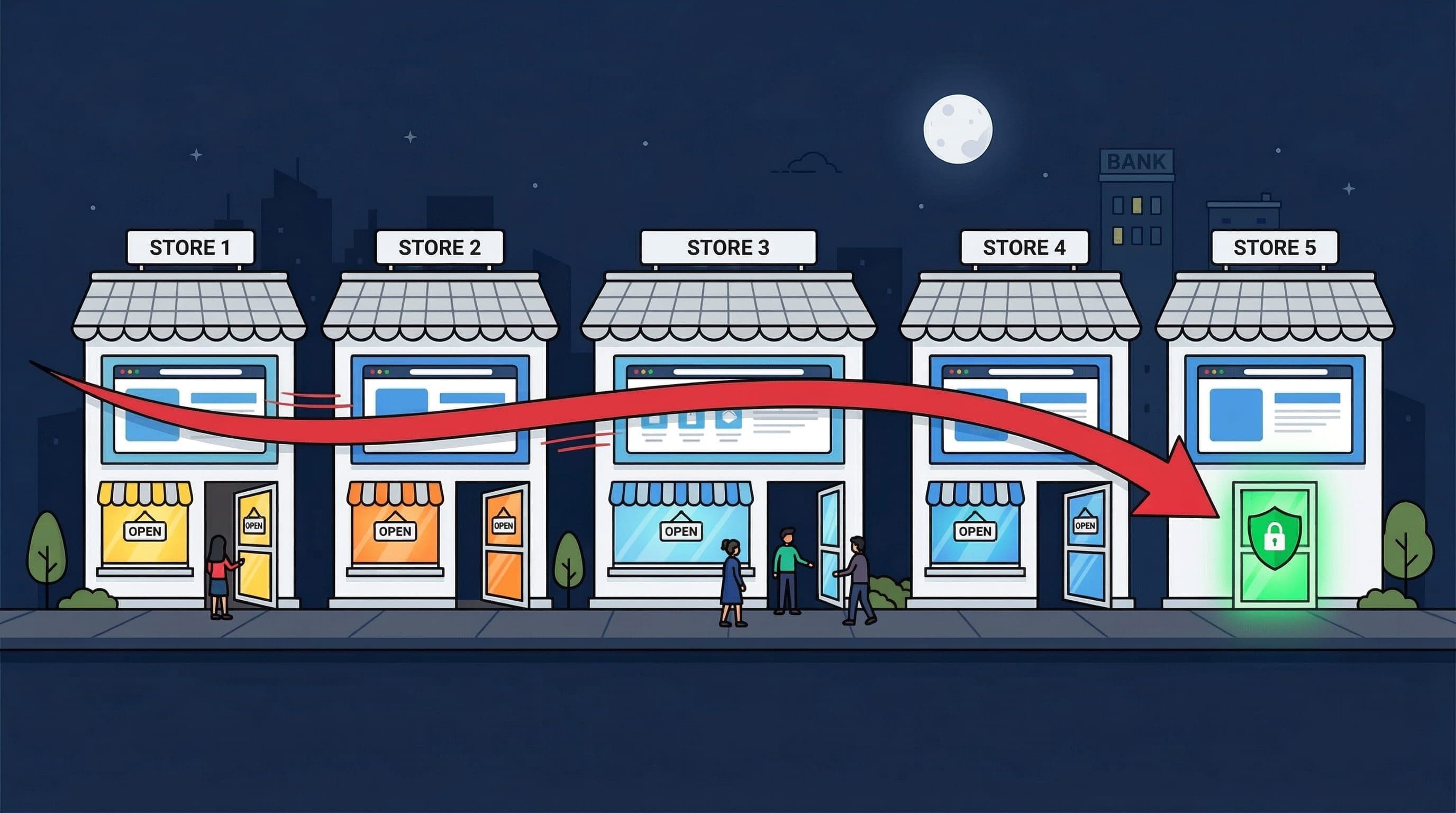
Unprotected WordPress websites targeted by automated attacks
The average small business WordPress site has been built by someone — a freelancer, an agency, a DIY owner — who focused on getting it live and looking right. Security configuration was either skipped entirely or handled at the surface level: a plugin installed, default settings left in place, and the assumption that installed means protected.
It doesn't.
WordPress powers over 40% of all websites on the internet. That market share makes it the single most targeted web platform for automated attacks. Bots don't choose targets based on business size or revenue — they scan every WordPress installation they can find, testing for the same predictable vulnerabilities on every site they reach.
The good news: the vulnerabilities they target are consistent and preventable. A business owner who works through this checklist once — carefully, in the right order — closes the doors that account for the vast majority of WordPress compromises. The bad news: most sites have never had anyone do this work.
This checklist exists to change that. It is organized by category, prioritized by impact, and written for someone running a business — not someone studying for a security certification.
Most business owners I work with prefer having this checklist run for them as part of a professional site build — so the site is secured from day one rather than patched after the fact.
The 20-Point WordPress Security Checklist
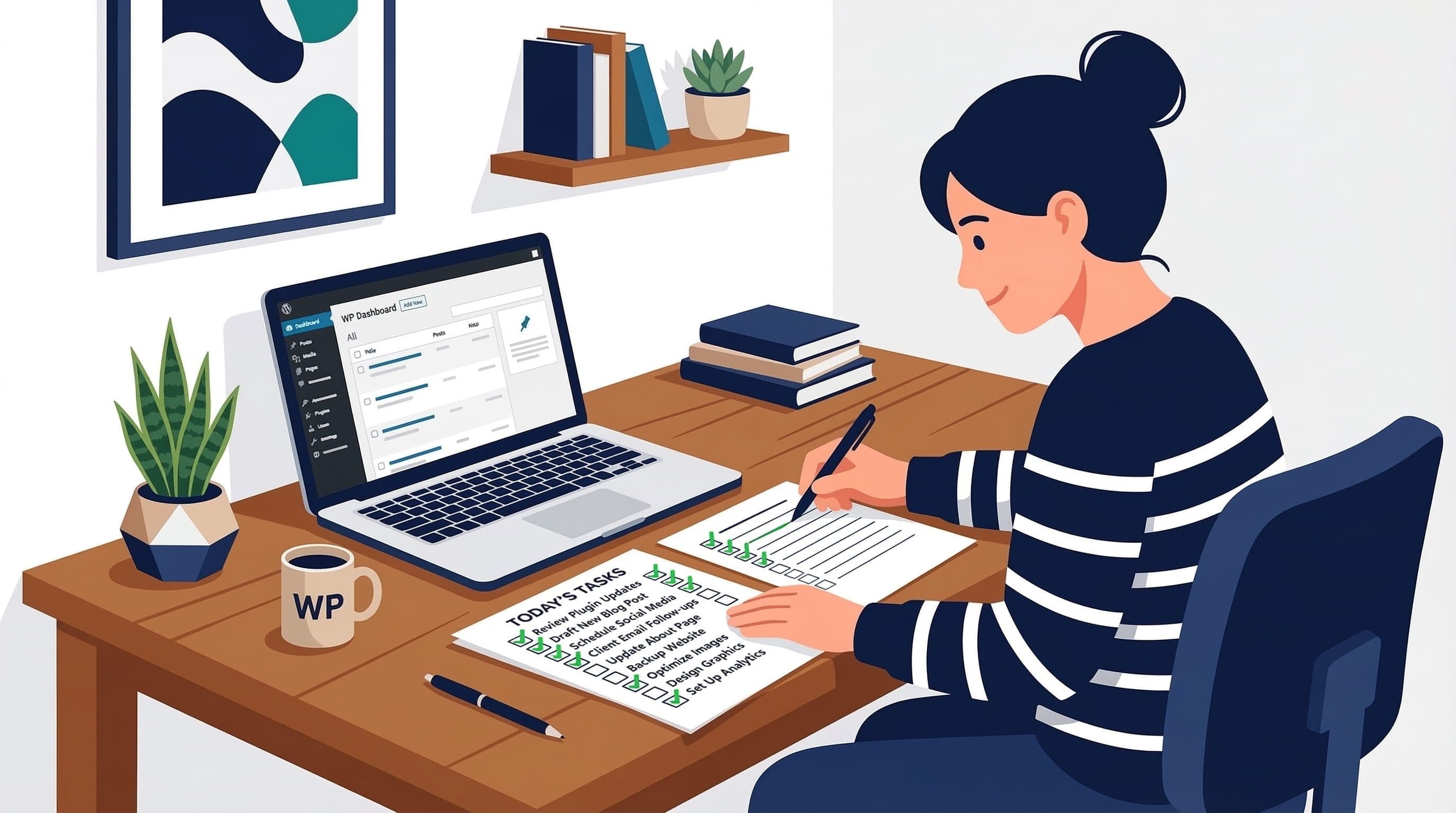
WordPress security checklist
Work through this list in order. Each item builds on the previous ones. Items marked with a category label are explained in detail in the section below the table.
| # | Checklist Item | Category | Done? |
|---|---|---|---|
| 1 | SSL certificate active — site loads on https:// | Foundation | [ ] |
| 2 | WordPress core on latest version | Updates | [ ] |
| 3 | All plugins updated to latest version | Updates | [ ] |
| 4 | All themes updated — including inactive ones | Updates | [ ] |
| 5 | Unused plugins deleted (not just deactivated) | Cleanup | [ ] |
| 6 | Unused themes deleted | Cleanup | [ ] |
| 7 | Admin username changed from 'admin' | Login | [ ] |
| 8 | Strong unique password on admin account | Login | [ ] |
| 9 | Two-factor authentication enabled on all admin accounts | Login | [ ] |
| 10 | Login URL changed from /wp-admin to custom path | Login | [ ] |
| 11 | Login attempt limit set to 3 failures before lockout | Login | [ ] |
| 12 | XML-RPC disabled (if not using WP mobile app or Jetpack) | Login | [ ] |
| 13 | Security plugin installed and configured | Plugin | [ ] |
| 14 | Firewall set to Extended Protection mode (not Basic) | Plugin | [ ] |
| 15 | Weekly malware scan scheduled | Plugin | [ ] |
| 16 | Email alerts tuned — high severity only | Plugin | [ ] |
| 17 | Daily automated backups running with off-site storage | Backups | [ ] |
| 18 | Backup restoration tested at least once | Backups | [ ] |
| 19 | Hosting on managed WordPress plan (server-level WAF included) | Hosting | [ ] |
| 20 | Uptime monitoring active with SMS alerts configured | Monitoring | [ ] |
Section-by-Section Breakdown
Each category in the checklist has a specific role in the overall security stack. Understanding why each item matters helps you prioritize correctly and avoid partial implementations that create a false sense of security.
Foundation — SSL and Hosting
SSL (the padlock in the browser address bar) encrypts data between your visitor's browser and your server. Without it, form submissions, login credentials, and any information entered on your site travels unencrypted. Google marks non-HTTPS sites as 'Not Secure' in Chrome, which actively damages conversion rates regardless of security risk. Every modern host provides SSL for free through Let's Encrypt. There is no reason to run without it.
Hosting quality is the foundation everything else builds on. A managed WordPress host — WP Engine, Kinsta, SiteGround Business — includes server-level firewalls, malware scanning, and isolated hosting environments. Budget shared hosting provides none of these. A well-configured security plugin on budget hosting provides meaningfully less protection than the same plugin on managed infrastructure.
Pro Insight:
SSL is free but it is not automatic on every host. After activating it through your hosting panel, install a plugin like Really Simple SSL to force all traffic to the HTTPS version and fix any mixed content warnings. A site with SSL on the certificate but still loading HTTP resources shows a broken padlock — which is almost as damaging as no SSL.
Updates — The Most Overlooked Layer
Over 60% of WordPress compromises happen through outdated plugins and themes, not through sophisticated attacks. Known vulnerabilities in popular plugins are published in public databases. Bots scan for sites running the vulnerable version and exploit them automatically, often within hours of the vulnerability being disclosed.
Keeping WordPress core, all plugins, and all themes on current versions closes these known vulnerabilities before they can be exploited. Enable automatic updates for minor versions — these are security patches and bug fixes, low risk of breaking anything. Check for major version updates weekly and test them on a staging environment if your site has custom functionality.
Pro Insight:
The most dangerous plugins on any site are the ones that are installed, inactive, and forgotten. A deactivated plugin's files still sit on the server. If those files contain a vulnerability, they are still exploitable — deactivation does not provide protection. Delete plugins you are not actively using. If you might need them later, reinstall them when the time comes.
Cleanup — What Should Not Be There
Every unused plugin and theme is a potential attack surface. The cleanup items in the checklist are not optional extras — they are part of the security posture of the site. A lean WordPress installation with only the tools it actually uses has a significantly smaller attack surface than one with fifteen plugins from three years of accumulated additions.
Go through the Plugins and Appearance > Themes sections of your dashboard. Anything that is not actively contributing to the site's current functionality gets deleted. Not deactivated. Deleted.
Pro Insight:
WordPress installs two default themes when you install it — Twenty Twenty-Three and Twenty Twenty-Four, or whichever the current defaults are. They are almost never used by actual sites but they sit there receiving updates. Delete them. Keep only the active theme and one parent theme if your active theme is a child theme.
Login Hardening — Where Most Attacks Happen
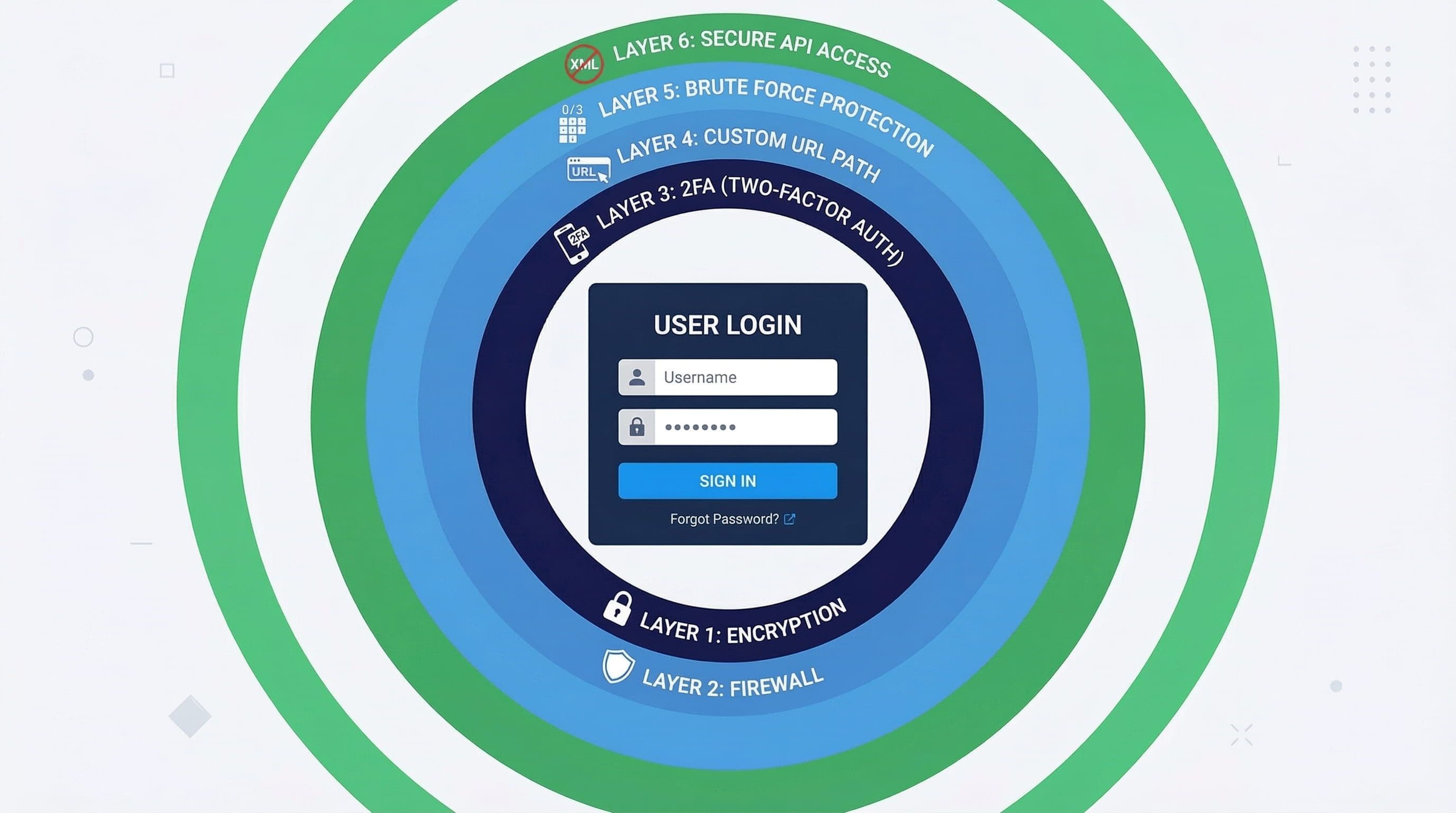
WordPress login hardening
The login page is the most attacked surface on any WordPress site. Every item in the Login section of this checklist addresses a specific, commonly exploited vulnerability:
- Admin username: 'admin' is the first credential every attack bot tries. Change it.
- Password strength: Use a password manager to generate a 20+ character random password. Never reuse credentials from other platforms.
- Two-factor authentication: A second verification layer means a compromised password alone is not sufficient for access. This is the highest-impact single security measure available.
- Login URL: The default /wp-admin is public knowledge for every bot. A custom path stops automated attacks before they reach the authentication mechanism.
- Login attempt limits: Without limits, bots have unlimited attempts. Three failures before lockout makes brute force attacks computationally impractical.
- XML-RPC: A parallel authentication endpoint that bypasses login limits. Block it unless specifically required.
Pro Insight:
These six items in the Login category take about 20 minutes to implement and collectively eliminate the most common attack vectors against WordPress sites. If you only do one section of this checklist, do this one.
Security Plugin — Configuration Not Just Installation
Installing Wordfence or Solid Security and leaving it on default settings provides partial protection. The two items in the plugin section of this checklist — Extended Protection firewall mode and scheduled scans — are the configuration steps most people skip.
Extended Protection mode means the firewall activates before WordPress loads, catching attacks earlier in the request cycle. Basic mode (the default) activates after WordPress loads, which is meaningfully less effective. The switch requires one extra step in the setup process and is worth taking.
Scheduled scans mean the malware scanner runs automatically on a weekly basis rather than only when you remember to run it manually. In the free version of Wordfence, scans are not scheduled by default — you must enable this.
Pro Insight:
Tune alert emails to high severity only. Default Wordfence settings generate notification volume that most people start ignoring within a week. An inbox you stop reading provides no protection. Fewer, more meaningful alerts keep you genuinely informed.
Backups — The Safety Net That Most Sites Skip
Backups are not a security measure. They are a recovery measure. Security prevents breaches — backups recover from them when prevention fails, and from the non-security disasters that hit every site eventually: failed plugin updates, accidental content deletion, hosting failures.
Daily automated backups stored off-site — Google Drive or Dropbox, not just on the server — mean the worst-case scenario for any site problem is losing one day of content. Without backups, the worst case is losing everything and rebuilding from scratch.
The backup restoration test is the most skipped item on this list and arguably the most important. A backup that has never been tested is a backup of unknown reliability. Restore a copy of the site to a staging environment at least once to confirm the backup is complete and the restoration process works.
Pro Insight:
UpdraftPlus free handles daily backups with Google Drive storage reliably for most service business sites. Configure it to retain 30 days of backup history. The storage space required is minimal and the peace of mind is significant.
Monitoring — Knowing Before Your Clients Do
Uptime monitoring checks whether your site is reachable at regular intervals and alerts you immediately when it goes down. The practical value: site issues are caught within minutes rather than discovered hours later when a client calls to say your website is broken.
UptimeRobot's free tier checks every 5 minutes and sends SMS and email alerts. For a business website, this level of monitoring is sufficient and costs nothing. Set it up once, configure the alert contact, and it runs indefinitely without attention.
Pro Insight:
Uptime monitoring also catches redirect hacks — if a compromise redirects your homepage to a spam site, the monitoring tool detects the redirect and alerts you. This is often how owners find out about infections that have no other visible symptoms.
Common Mistakes That Invalidate the Checklist
Doing the Easy Items and Skipping the Hard Ones
SSL is easy — one click in the hosting panel. Updating plugins is easy — one click in the dashboard. Changing the admin username, configuring Extended Protection mode, testing a backup restoration — these require slightly more effort, and they are the items most often skipped. The security posture of a site is determined by its weakest point, not its strongest. A site with 18 of 20 items completed has open vulnerabilities if the two skipped items are login hardening and firewall configuration.
Running the Checklist Once and Never Revisiting It
This checklist is a one-time setup document for the configuration items and a recurring maintenance prompt for the update and backup items. Plugins release updates continuously. New vulnerabilities are disclosed regularly. A site that was fully secured 18 months ago and has received no maintenance since is no longer fully secured. The update items on this checklist are ongoing responsibilities, not one-time tasks.
Treating Plugin Installation as Security
Installing Wordfence and considering the security work done is the most common mistake in this space. The plugin is the tool. The configuration is the security. A security plugin on default settings catches perhaps 60% of common threats. The same plugin correctly configured catches the other 40% that automated attacks rely on. Installation without configuration is not security — it is the appearance of security.
Skipping the Backup Restoration Test
A backup file that has never been restored is a backup of unknown quality. Backup processes fail silently — a configuration error, a storage permission issue, a file size limit — and the failure is only discovered when the backup is needed. Test the restoration process before you need it, not after.
How Often Should This Checklist Be Reviewed?
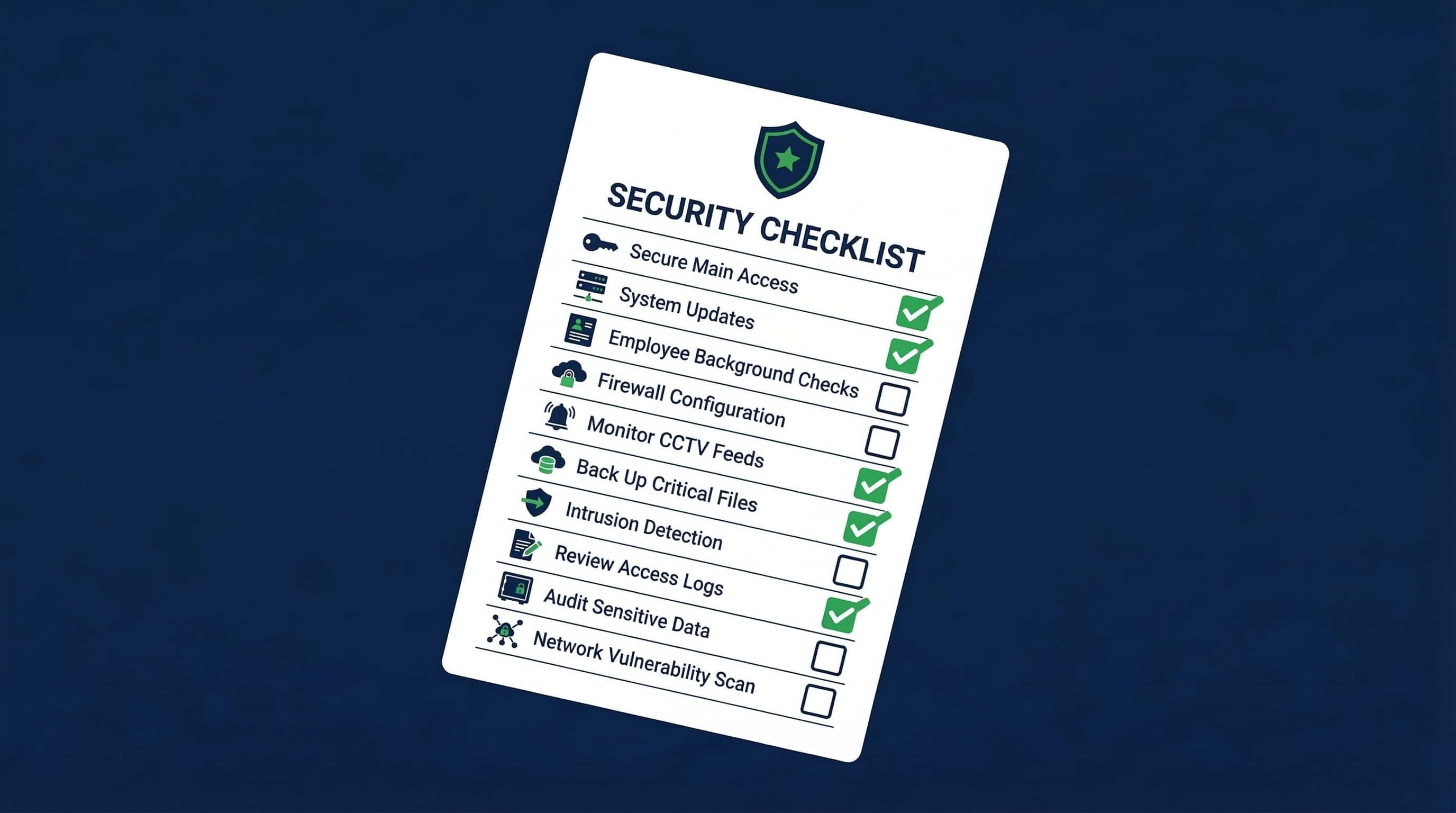
Completed WordPress security checklist — fully secured small business website setup
The 20 items in this checklist fall into two categories:
- One-time configuration items (SSL, login hardening, firewall setup, plugin configuration, monitoring setup): Do these once correctly. Revisit only if you change hosting, rebuild the site, or add new admin users.
- Ongoing maintenance items (WordPress core updates, plugin updates, theme updates, backup verification): Review monthly at minimum. Plugin updates should be applied within a week of release for security-flagged updates.
A practical approach: set a recurring monthly calendar reminder for a 20-minute site maintenance session. Update plugins, confirm backups are running, review any Wordfence alerts from the previous month. That is the full ongoing maintenance load for a properly configured site.
Related Articles
- How to Stop Brute Force Attacks on Your WordPress Login Page (Without a Plugin Overload)
- How to Set Up a WordPress Security Plugin the Right Way (Step-by-Step for Non-Technical Users)
Frequently Asked Questions
How long does it take to complete this WordPress security checklist?
For a new site with no prior security configuration, working through all 20 items takes approximately 90 minutes to 2 hours. The Login Hardening section and the security plugin configuration are the most time-intensive. For a site that already has some items in place — SSL active, plugins updated — the remaining items can be completed in under an hour. The backup restoration test adds additional time depending on site size.
Do I need all 20 items or just the most important ones?
The 20 items cover different layers of protection and different types of risk. Skipping items does not mean those risks disappear — it means they remain unaddressed. The Login Hardening section (items 7–12) and the Security Plugin section (items 13–16) are the highest-impact categories for most business sites. If you must prioritize, complete those two sections first. Then complete the remaining items as time permits. An incomplete checklist is better than no checklist — but every incomplete item is an open vulnerability.
Is this checklist enough or do I need a professional security audit?
For the vast majority of small business service websites — portfolio sites, booking sites, lead generation sites — this checklist covers everything needed for a genuinely secure configuration. A professional security audit is warranted for sites handling payment processing, sensitive client data (medical, legal, financial), or sites that have experienced repeated compromises despite proper configuration. For most service business owners, this checklist applied correctly is comprehensive.
What is the difference between deactivating and deleting a plugin?
Deactivating a plugin stops it from running but leaves all its files on the server. Those files remain accessible and can contain exploitable vulnerabilities. Deleting a plugin removes the files entirely, eliminating the attack surface. For security purposes, plugins that are not actively in use should be deleted, not deactivated. If you need a plugin again in the future, reinstall it — the configuration can be recreated and the files will be current rather than potentially outdated.
How do I know if my backups are actually working?
In UpdraftPlus, you can see the last backup timestamp in the dashboard and download the most recent backup files. The definitive test is restoration: take a backup file and restore it to a staging environment or a subdomain. If the restoration produces a working copy of the site, the backup is reliable. If it fails or produces an incomplete site, the backup configuration needs to be corrected. Many backup systems appear to be running correctly while producing incomplete or corrupted files — testing is the only way to confirm.
Should I hire someone to handle WordPress security for my business?
If you have the time and willingness to work through this checklist carefully, the DIY approach is viable. The tools required are free or low-cost, and the configuration is manageable without technical expertise if you follow each step. If your time is better spent on client work and revenue generation, having a WordPress developer configure the site correctly from the start costs significantly less than recovering from a compromise — and eliminates the risk of a missed item leaving an exploitable gap.