
Web developer monitoring WordPress brute force attack logs
WordPress Login Under Attack? Stop It Without Plugins (3 Fixes)
Stop WordPress brute force attacks without a plugin. 3 server-level fixes for wp-login.php using .htaccess, IP blocking, and Cloudflare. Exact code included.
A typical WordPress site receives 200 to 1,000 brute force login attempts per day. Everyone hits your server even when a plugin blocks it. These three server-level fixes stop bot traffic before WordPress loads and can reduce login attack load by over 90 percent on most shared hosting setups.
By Sheikh Hassaan - digital architect
Quick Answer
Methods to limit WordPress login attempts without a plugin:
1. Password protect wp-login.php using HTTP Basic Authentication via .htaccess
2. Restrict wp-login.php access to specific IP addresses only
3. Block repeated login requests using mod_rewrite rules in .htaccess
All three run at the server level before WordPress or PHP loads. Blocking bot traffic at this layer reduces server resource usage by over 90 percent compared to plugin-only protection. Exact copy-paste code for each method is below.
Which method is right for you?
Best for most sites → Method 1: HTTP Basic Authentication (works from any location)
Fastest emergency fix → Method 1 (5 minutes to implement)
Most secure, static IP only → Method 2: IP Allowlist
Lowest friction, no second password → Method 3: mod_rewrite
Already using Cloudflare → Add a rate limiting rule first (see Cloudflare section)
At a glance: which methods block bots before WordPress loads?
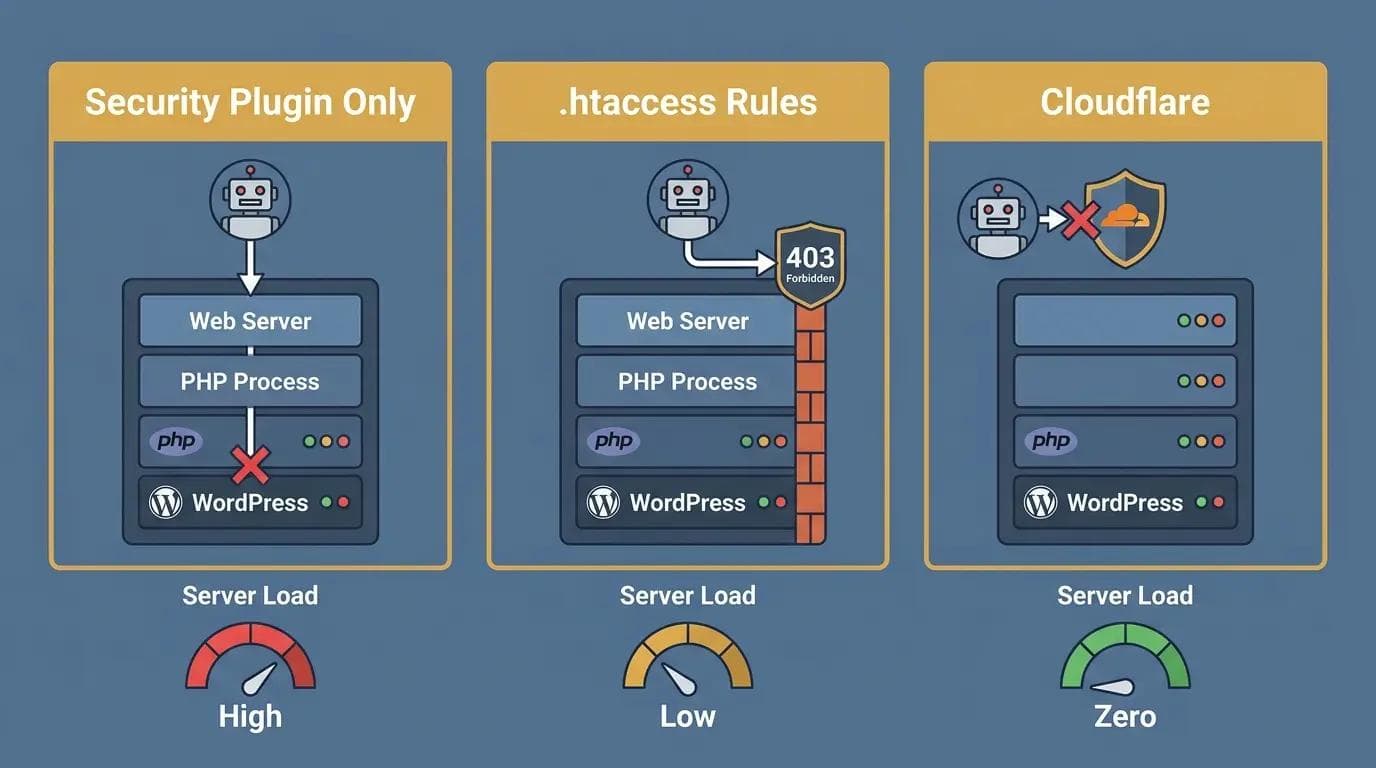
Three panel comparison
| Method | Blocks Bots Before WordPress | Requires Plugin | Server Load |
|---|---|---|---|
| .htaccess Rules | Yes | No | Near zero |
| Cloudflare Rate Limiting | Yes (CDN edge) | No | Zero |
| Security Plugin Only | No | Yes | High |
| IP Allowlist | Yes | No | Near zero |
The Biggest Mistake Most Site Owners Make
Relying only on a security plugin while ignoring server-level blocking. A plugin stops brute force attacks at the WordPress application layer. That means every single login attempt, even the ones the plugin blocks, still triggers a PHP process and uses server resources. On a site under active attack this adds up to hundreds of wasted PHP executions per hour.
Server-level rules stop those requests before PHP ever runs. This is where most setups fail and why sites running only plugins still show performance degradation during attacks.
Is Your Site Under Attack Right Now? Do This First
If your server is slow or your logs show hundreds of wp-login.php requests per minute:
Apply Method 1 immediately. HTTP Basic Authentication stops most automated bots in under 5 minutes. Access your hosting File Manager or FTP, open .htaccess in your WordPress root, paste the Method 1 code block, and save. Attack volume drops as soon as the server-level prompt is active.
If this step fails, nothing else works. This is your first line of defence.
What Is a WordPress Brute Force Attack and Why Do Login Limits Matter?
A brute force attack on WordPress means automated bots targeting your wp-login.php login endpoint is cycling through thousands of username and password combinations. wp-login.php is the default WordPress authentication endpoint and every bot knows exactly where to find it on any WordPress installation.
A typical site receives 200 to 1,000 of these bot traffic attempts per day. During targeted attacks the number can reach tens of thousands per hour. Even when a security plugin blocks these attempts, each request still reaches your server, triggers a PHP execution, and queries the database before being stopped. On shared hosting this creates measurable server load and slows response times for real visitors.
Server-level .htaccess rules stop the request at the Apache web server before any PHP runs. A blocked bot receives a server response immediately. The difference between plugin-only blocking and server-level blocking is the difference between blocking attacks after they reach your application and blocking them before they touch it at all. For a complete breakdown of the wp-login.php attack pattern and full multi-layer strategy, see the guide on how to stop wp-login.php brute force attacks on WordPress.
Plugin vs Server-Level vs Cloudflare: Which Gives the Best Login Page Protection?
| Method | Server Load | Security Level | Ease of Setup | Best For |
|---|---|---|---|---|
| Security Plugin Only | High | Medium | Easy | Beginners, monitoring |
| .htaccess Rules | Low | High | Medium | Most WordPress sites |
| IP Allowlist | Lowest | Highest | Easy (static IP) | Fixed-location access |
| Cloudflare Rate Limiting | Zero | High | Easy | Sites using Cloudflare |
| All Combined | Near zero | Highest | Medium | Recommended final setup |
The most common mistake is choosing one method. The strongest WordPress firewall rules combine all layers: Cloudflare at the network edge, .htaccess at the server level, and a plugin for monitoring and authentication endpoint security.
How Bot Traffic Reaches Your Server and Where Each Method Stops It
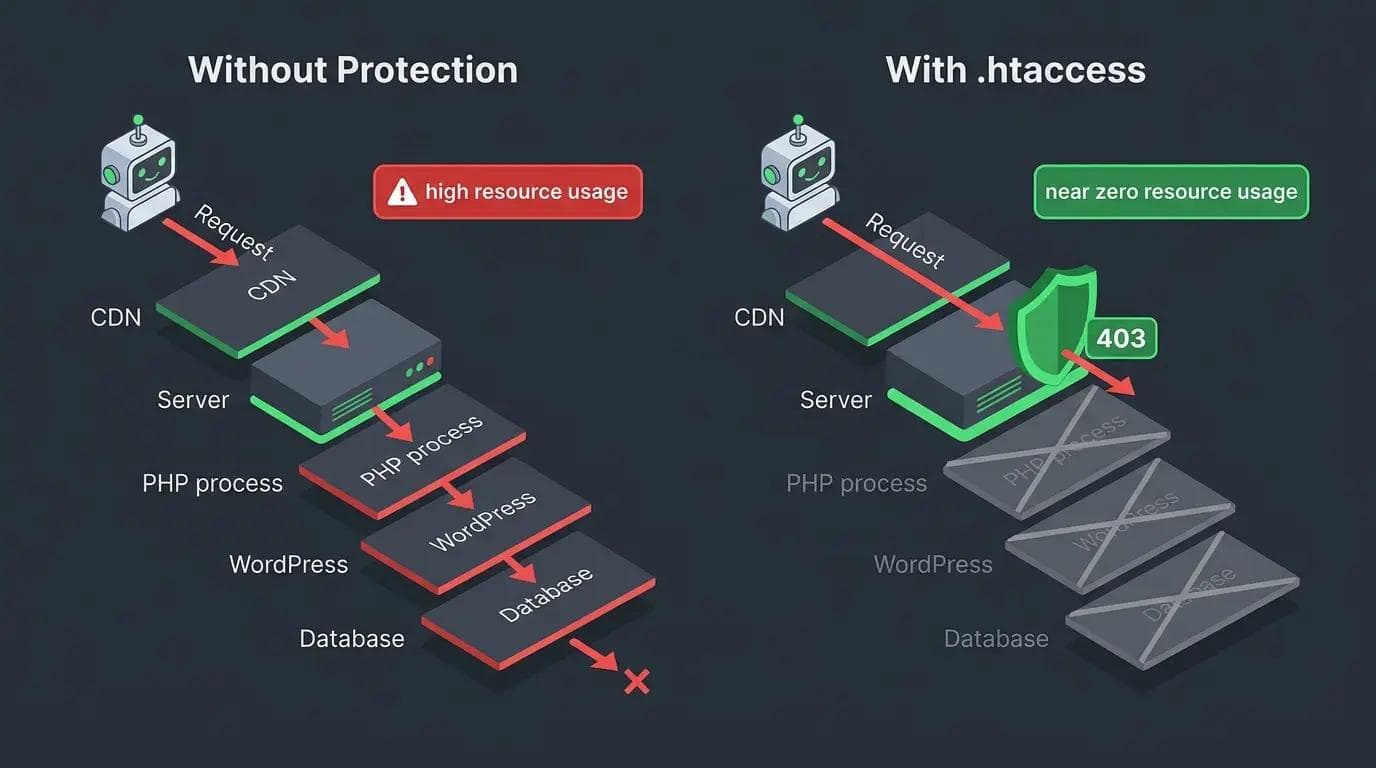
WordPress brute force attack protection
WITHOUT server-level protection:
Bot → Your server → PHP loads → WordPress runs → Plugin checks → Blocked → PHP ends
Result: Server resources consumed on every blocked request. 500 attempts per hour = 500 PHP executions.
WITH .htaccess WordPress firewall rules:
Bot → Apache checks .htaccess → Blocked → 403 response sent
Result: PHP never loads. 500 attempts per hour = near-zero server resource usage.
WITH Cloudflare rate limiting:
Bot → Cloudflare CDN edge → Blocked
Result: Request never reaches your server. Zero server resource usage.
How to Find and Edit Your .htaccess File Safely
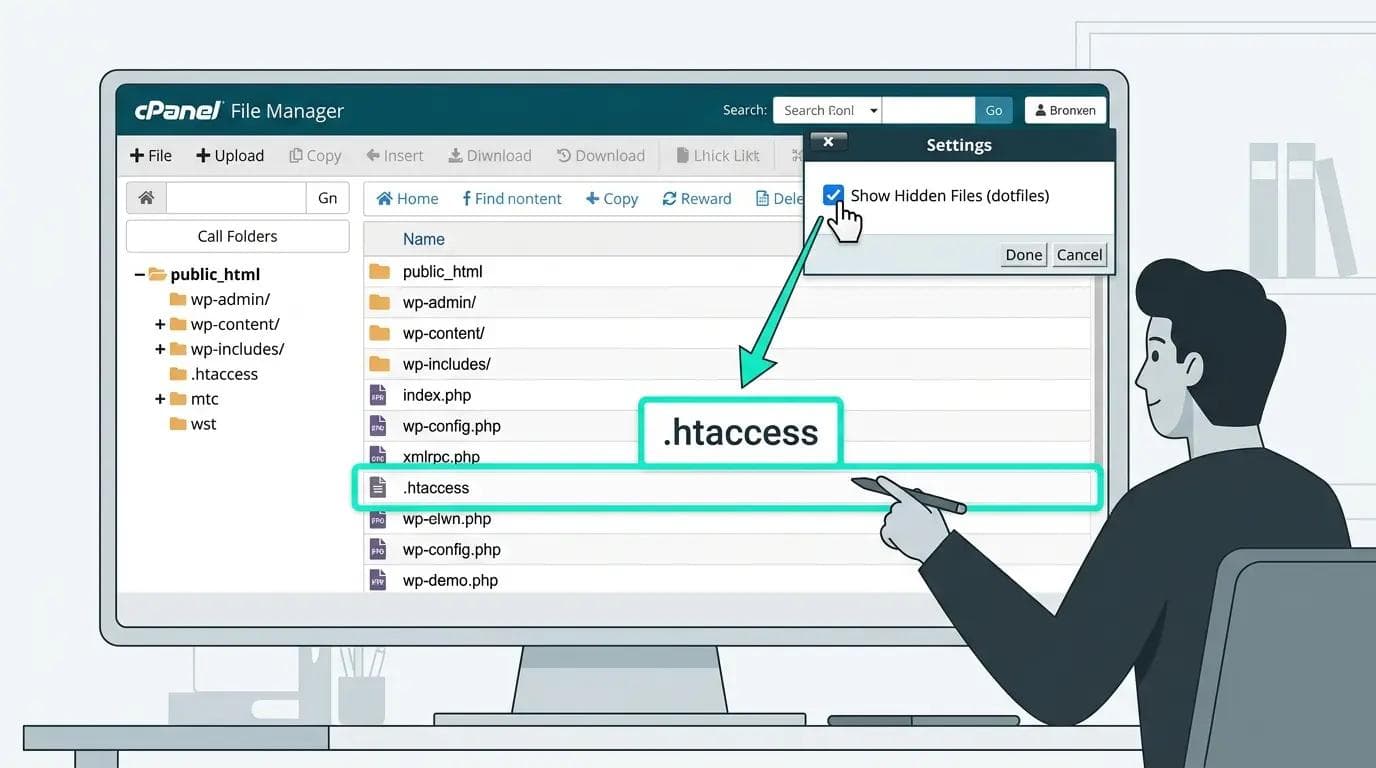
cPanel File Manager interface showing WordPress root directory with htaccess file
.htaccess is a hidden plain text configuration file in your WordPress root directory. It tells Apache how to handle incoming requests. Here is how to access it safely before applying any changes.
Via cPanel File Manager
Log into cPanel and click File Manager. Navigate to public_html. Click Settings in the top right and enable Show Hidden Files. The .htaccess file now appears in the list. Right-click and select Edit.
Via FTP
Connect using FileZilla. Navigate to your WordPress root. Go to Server then Force Showing Hidden Files. Download a copy of .htaccess to your computer as a backup before making any changes.
Important: Always back up first. Download .htaccess to your computer before editing. A syntax error causes a 500 error for all visitors. Re-upload your backup via FTP to fix it immediately. This recovery takes under 60 seconds with FTP access.
Which Method Should You Use?
Static IP address every time you log in?
→ Use Method 2 (IP Allowlist). Strongest protection. Zero false positives.
Dynamic IP or travel frequently?
→ Use Method 1 (HTTP Basic Auth). Works from any location.
Want no second password required?
→ Use Method 3 (mod_rewrite). Transparent bot filtering.
Already on Cloudflare?
→ Add a rate limiting rule first. Then layer .htaccess on top.
Best setup: Apply all three methods for layered login endpoint protection.
3 Ways to Stop WordPress Brute Force Attacks Without a Plugin
Back up your .htaccess file before applying any of these. Add the code blocks at the end of your existing .htaccess file, after the WordPress core rules. Each method works independently or can be combined.
Beginner Safe Version (Recommended if you are not sure which method to use)
Copy and paste this block into your .htaccess file. It implements Method 1 in its simplest form. Replace the path and credentials with your own.
<Files wp-login.php>
AuthType Basic
AuthName "Admin Access"
AuthUserFile /home/yourusername/.htpasswd
Require valid-user
</Files>
This is the minimum working version. Full setup instructions for Method 1 are directly below.
Method 1: Password protect wp-login.php with HTTP Basic Authentication
What this does: Adds a second authentication layer before the WordPress login form loads. Bots cannot pass this server-level prompt and are blocked entirely. This is the recommended method for most sites and the fastest emergency fix under active attack.
Step 1: Create your .htpasswd file
Use an online htpasswd generator to create an encrypted password entry. Upload the file to a directory above your public_html folder so it is not web accessible.
yourusername:$apr1$xyz123$encryptedpasswordstring
Step 2: Add these rules to your .htaccess file
# Protect wp-login.php - HTTP Basic Authentication
<Files wp-login.php>
AuthType Basic
AuthName "Restricted Access"
AuthUserFile /home/yourusername/.htpasswd
Require valid user
</Files>
Replace /home/yourusername/.htpasswd with your actual server path. Store the credentials in a password manager immediately.
Test checklist for Method 1:
Open wp-login.php. A browser authentication dialog should appear before the WordPress form.
Enter wrong credentials. Should show 401 error and not proceed.
Enter correct credentials. WordPress login form should appear normally.
Test from mobile. Prompt should appear on all devices.
Method 2: Block wp-login.php access by IP address
What this does: Restricts the login endpoint entirely to specific IP addresses. The strongest method. Only use if you have a consistent static IP address.
Check your current IP at whatismyip.com first. Add these rules to your .htaccess:
# Restrict wp-login.php to specific IPs only
<Files wp-login.php>
Order Deny,Allow
Deny from all
Allow from 123.456.789.0
Allow from 98.765.432.1
</Files>
Test checklist for Method 2:
Access wp-login.php from your allowed IP. Login page should load normally.
Access from mobile data (different network). Should receive a 403 Forbidden error.
Keep FTP access available. If your IP changes you will need FTP to remove this rule.
Method 3: Rate limit wp-login.php with mod_rewrite
What this does: Blocks POST requests to wp-login.php without a valid referrer from your domain. Bots making direct POST requests are blocked. Legitimate logins from your browser pass through normally. mod_rewrite is enabled on most shared hosting by default. You do not need to install anything.
# Block direct POST requests to wp-login.php
<IfModule mod_rewrite.c>
RewriteEngine On
RewriteCond %{REQUEST_METHOD} POST
RewriteCond %{REQUEST_URI} ^/wp-login\.php
RewriteCond %{HTTP_REFERER} !^https://yourdomain.com [NC]
RewriteRule ^(.*)$ - [R=403,L]
</IfModule>
Replace yourdomain.com with your actual domain. Test a login attempt immediately after applying.
Test checklist for Method 3:
Log into WordPress from your browser. Login should work as normal.
If your own login breaks, your server may strip referrer headers. Remove this rule and use Method 1 instead.
Common Issues and How to Fix Them
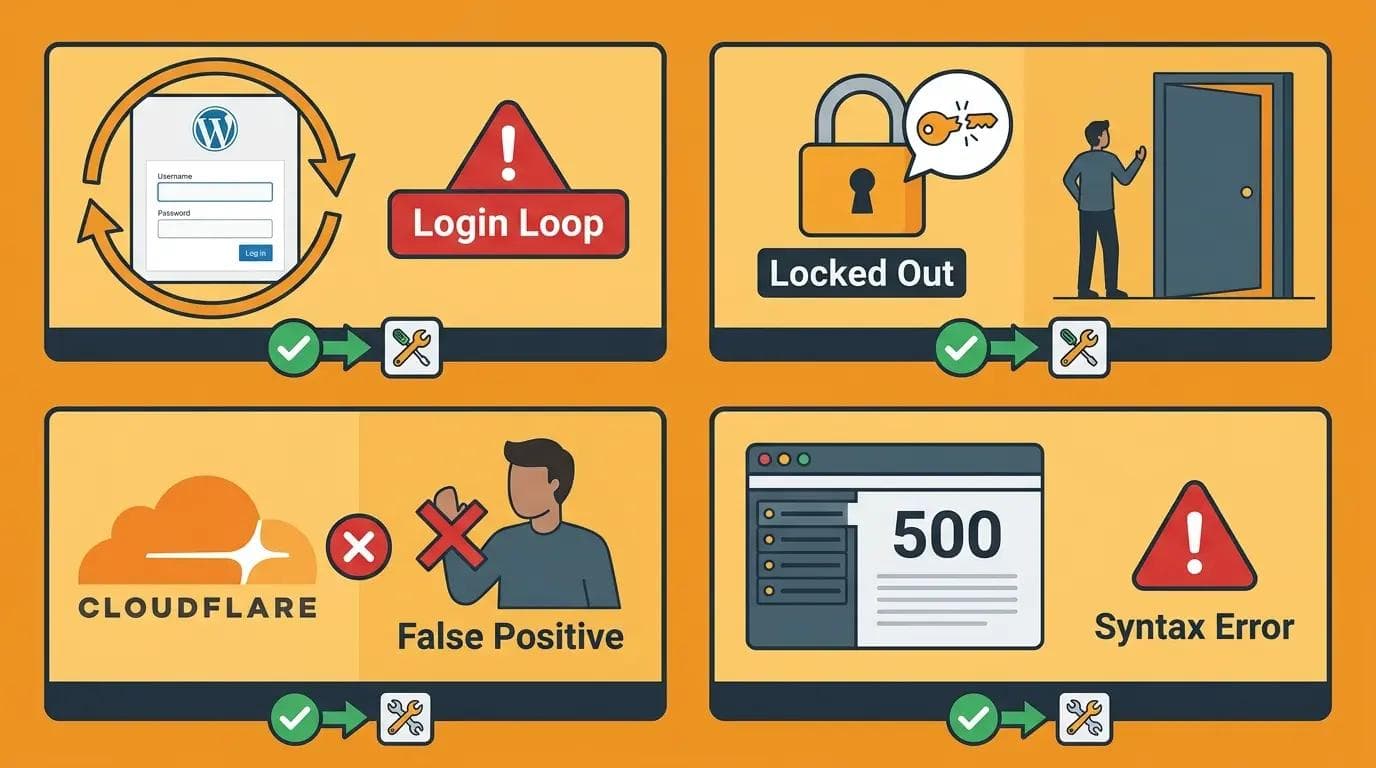
WordPress htaccess login protection issues including login loop, lockout, Cloudflare false positive, and 500 error
This is where most setups break. If something is not working as expected after applying these rules, here are the most common causes and fixes.
Login loop after applying Method 3
Cause: Your server is stripping the HTTP referrer header before it reaches the mod_rewrite check. This makes legitimate logins look like bot requests to the rule. Fix: Remove the Method 3 rule from .htaccess and use Method 1 instead. Method 1 does not depend on referrer headers and works on all server configurations.
Locked out after applying Method 2 (IP allowlist)
Cause: Your IP address changed since you applied the rule, or you are connecting from a different network such as mobile data or a different office. Fix: Connect via FTP, open .htaccess, add your new IP address on a new Allow from line, and save. Alternatively remove the rule temporarily while you update it. Keep FTP credentials saved separately from your WordPress login for exactly this situation.
Cloudflare rate limiting blocking real users
Cause: The rate limiting threshold is set too low. A threshold of five requests per minute is usually correct for wp-login.php but some sites with multiple administrators logging in from the same office IP may hit this limit. Fix: Increase the threshold to ten or fifteen requests per minute or add the office IP address to a Cloudflare allowlist rule that bypasses rate limiting for trusted IPs.
500 error after editing .htaccess
Cause: A syntax error in the .htaccess file. Fix: Connect via FTP immediately, download the broken .htaccess file if you want to review the error, then re-upload the backup copy you made before editing. The site restores instantly on save. Then re-apply the rule carefully checking for missing angle brackets, mismatched quotes, or extra spaces in the code.
What If Your Server Uses NGINX?
.htaccess is an Apache-specific feature and does not work on NGINX servers. For NGINX add these directives to your server configuration block:
location = /wp-login.php {
auth_basic "Restricted Access";
auth_basic_user_file /etc/nginx/.htpasswd;
fastcgi_pass unix:/var/run/php/php8.0-fpm.sock;
include fastcgi_params;
}
NGINX configuration changes require a server reload using sudo nginx -s reload. On managed hosting contact your host for assistance with server-level login page security configuration.
How Does Cloudflare Rate Limiting Compare to .htaccess Rules?
Cloudflare rate limiting blocks bot traffic at the CDN edge before requests reach your server at all. This is the most resource-efficient authentication endpoint security available because blocked requests consume zero server resources.
In the Cloudflare dashboard go to Security then WAF then Rate Limiting Rules. Create a rule targeting /wp-login.php with a threshold of five requests per minute per IP. In Cloudflare dashboard go to Security then WAF then Rate Limiting Rules.
Cloudflare protection persists even if your .htaccess is reset by a WordPress update or migration. .htaccess rules require re-applying after any operation that recreates the file. Use Cloudflare as the first layer and .htaccess as the second for maximum bot traffic filtering coverage.
How to Recover If You Lock Yourself Out
- Connect via FTP using FileZilla or your hosting file manager.
- Navigate to your WordPress root and open .htaccess.
- Add a hash symbol at the start of each line of the blocking rule to comment it out.
- Save the file. Access restores immediately with no server restart needed.
- Re-add the rule with the correct IP address or fixed syntax.
What Else Should You Do to Secure wp-login.php?
- Change your WordPress login URL using WPS Hide Login. Bots targeting wp-login.php cannot attack a login page at a custom URL.
- Enable two-factor authentication on all admin accounts. Stops credential stuffing attacks that use real leaked passwords.
- Disable XML-RPC if you do not use the WordPress mobile app or Jetpack. XML-RPC is an alternative authentication endpoint that bypasses standard login limits.
- Use passwords of at least 20 characters for all WordPress admin accounts generated by a password manager.
- Add Wordfence as the monitoring layer. Server rules handle efficiency. Wordfence handles visibility and 2FA. Both together give the strongest protection without significant overhead.
Would You Rather Not Configure This Manually?
If you would rather not configure server-level rules yourself, I offer a free WordPress security audit that shows you exactly what is exposed on your site right now.
I will check your wp-login.php protection, .htaccess configuration, XML-RPC status, 2FA setup, and plugin configuration and give you a specific action list. No obligation. No upsell. Just a clear security check.
WhatsApp message to send: Hi Sheikh, free WordPress security audit: [your website URL]
Professional WordPress sites with complete security configuration start from $449.
Send a WhatsApp for Your Free Security Audit
About the Author
Sheikh Hassaan, Digital Architect for Small Businesses
I help service businesses launch fast, secure, conversion-focused websites without the agency price tag.
Related Articles
- 7 Signs Your WordPress Website Is Hacked (And How to Fix It)
- How to Stop wp-login.php Brute Force Attacks on WordPress
- Is the Free Version of Wordfence Enough for Your Business Website? (Honest Answer)
Frequently Asked Questions
How do I limit WordPress login attempts without a plugin?
Limit WordPress login attempts without a plugin using .htaccess rules on Apache servers. The three methods are HTTP Basic Authentication which adds a server-level password prompt before the login form loads, IP allowlisting which restricts access to specific IP addresses, and mod_rewrite rules which block POST requests without a valid referrer. All three stop bot traffic before WordPress or PHP loads and reduce login attack server load by over 90 percent compared to plugin-only blocking.
Is it safe to edit .htaccess?
Editing .htaccess is safe when done carefully. Always download a backup before making changes. A syntax error causes a 500 error which you fix by re-uploading your backup via FTP in under 60 seconds. Test any change immediately after applying by accessing the affected URL from a different device. Keep FTP access credentials saved separately from your WordPress login as a recovery route.
What is the best no-plugin method to protect wp-login.php?
HTTP Basic Authentication via .htaccess is the best no-plugin protection for wp-login.php for most sites. It works from any IP address, stops most automated bots entirely, and takes under five minutes to implement. For sites already on Cloudflare add a rate limiting rule for wp-login.php first as it blocks requests before they reach your server at all with zero server resource usage.
What if my server uses NGINX not Apache?
.htaccess rules only work on Apache. For NGINX add authentication rules directly to your NGINX server configuration block using the auth_basic directive. NGINX changes require a server reload to take effect. On managed hosting contact your host for assistance with NGINX login page security configuration.
Can I combine all three methods?
Yes. All three methods are compatible and can be applied simultaneously in the same .htaccess file. Using all three together gives layered login endpoint protection: Method 1 blocks bots without valid credentials, Method 2 blocks all non-whitelisted IPs, and Method 3 blocks direct POST requests from sources without valid referrers. Add Cloudflare rate limiting as a fourth layer if your site uses Cloudflare and you have the strongest available no-plugin WordPress firewall rules configuration.